
Overview
Web Hub is a hosted sync of your Campaign Codex (CC) journals, accessible via the WebHub website.
A current Patreon membership is required to use the Campaign Codex Web Hub Sync module and access the Web Hub Site. Opening the Web Hub Site or Module will open a Patreon Authorisation window. When you share a link with others using the share button, they do not need a Patreon membership to view the shared link. The Campaign Codex Web Hub Sync module is for Foundry v14, and the manifest URL is available at:
- Patreon: Beta Tests & Manifests
- Discord: Betas
Web Hub is not a Foundry backup. It is an out-of-Foundry sync of your CC journals; Foundry remains the source of truth and permanent storage for your content. Any edits made in Web Hub should be synced back to the Foundry world to permanently retain them.
Campaign Codex Web Hub Sync
The Campaign Codex Web Hub Sync module adds three buttons to your journal panel in Foundry:
- Sync: Opens the Sync dialogue
- Open: Opens the Web Hub Site
- Status: Opens the Web Hub API / Server status page
Module Settings
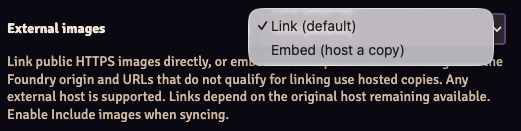
External Images:
- Link: If you host your images on an S3 or other bucket, Campaign Codex Web Hub Sync can link to them rather than copy them to the Web Hub; linked images do not count toward storage quotas.
- Embed: Downsamples and uploads the images to Web Hub as part of the sync process; these images count toward storage quotas.
Syncing
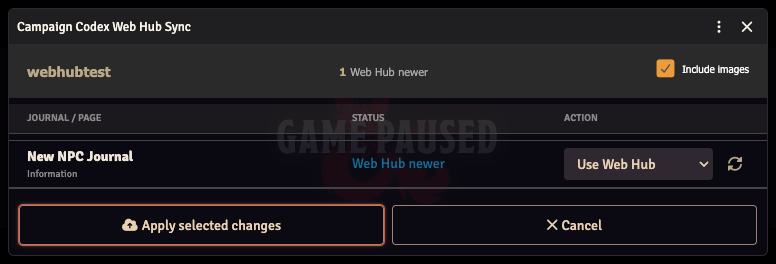
The Sync button checks Patreon membership and prompts for authorisation if needed, then opens the Sync Dialogue.
From this dialogue, you can:
- Choose to include images or not in the sync
- View the status of the journals
- Choose to Skip; use Web Hub, Foundry versions; and remove deleted journals from Web Hub.
- Set journals to not sync using the button toggle
Once you start the sync with Apply Selected Changes, the module will begin processing the images (if included) and journals, then upload and add the sync to the queue; once processed, it will be available on the Web Hub.
Web Hub
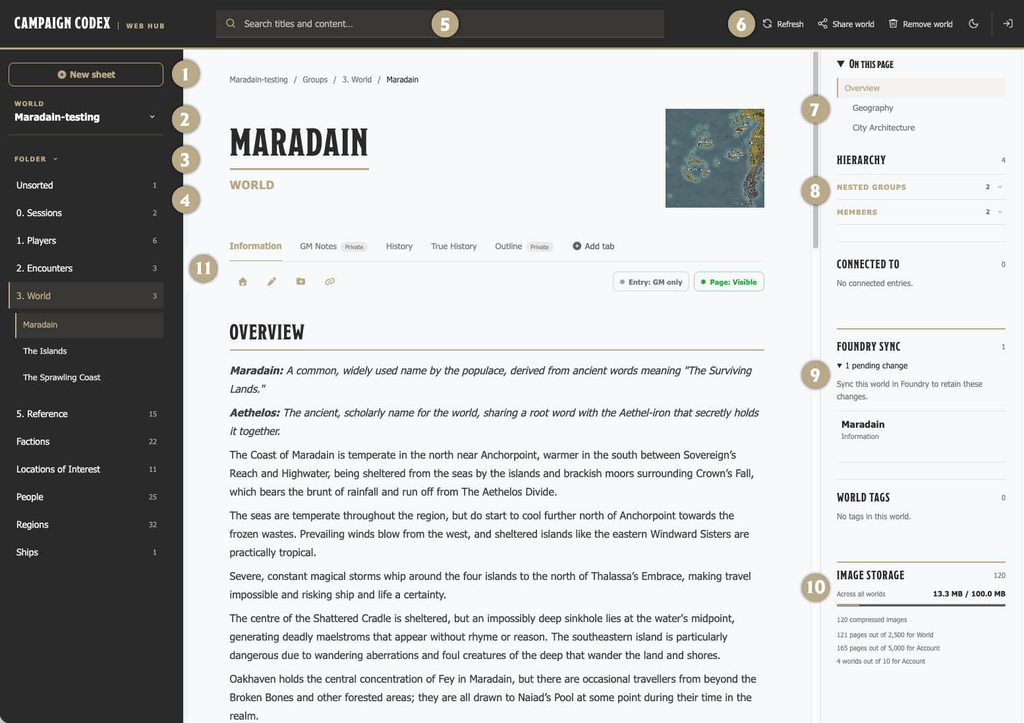
The Web Hub site checks Patreon membership and prompts for authorisation if needed and then will load the content associated with that account.
- Create a NEW Campaign Codex Sheet
- World selector
- View mode: Folder, Type, and Label
- Campaign Codex Sheets organised depending on view mode
- Search, title and content
- Controls
- Refresh
- Share world: Creates and copies a url to share with others. This share link is a read-only, player view of the world.
- Remove world: Deletes all the sheets and images from Web Hub (does not affect Foundry)
- Light/Dark mode
- Logout
- Table of Contents for the current viewed sheet
- Linked sheets, Connections and Tags
- Any pending changes that have not been synced
- Account Information: Storage quota; world quota; page quota
- Page Controls
- Sets the current sheet as the Home sheet; will be the sheet displayed when the world is first viewed if the viewer has permission to view it.
- Opens the editor.
- Opens the Folder manager, used to move the sheet to a new folder
- Opens the Link manager, used to add and remove linked sheets